Form
OVERVIEW
We have brought you a good Lead generation feature in our Show. The Form Up feature will help generate quality leads through your video.
You can make your viewers submit the forms in the video and you can integrate your account with one of our many email marketing providers to collect the leads effectively.
If your favorite email marketing provider is not part of our integrator apps, you can always submit them using our form feature.
HOW TO SET UP A FORM?
Our Form Up feature is a very simple feature to set up. You can add a form to your video by following a few simple steps.
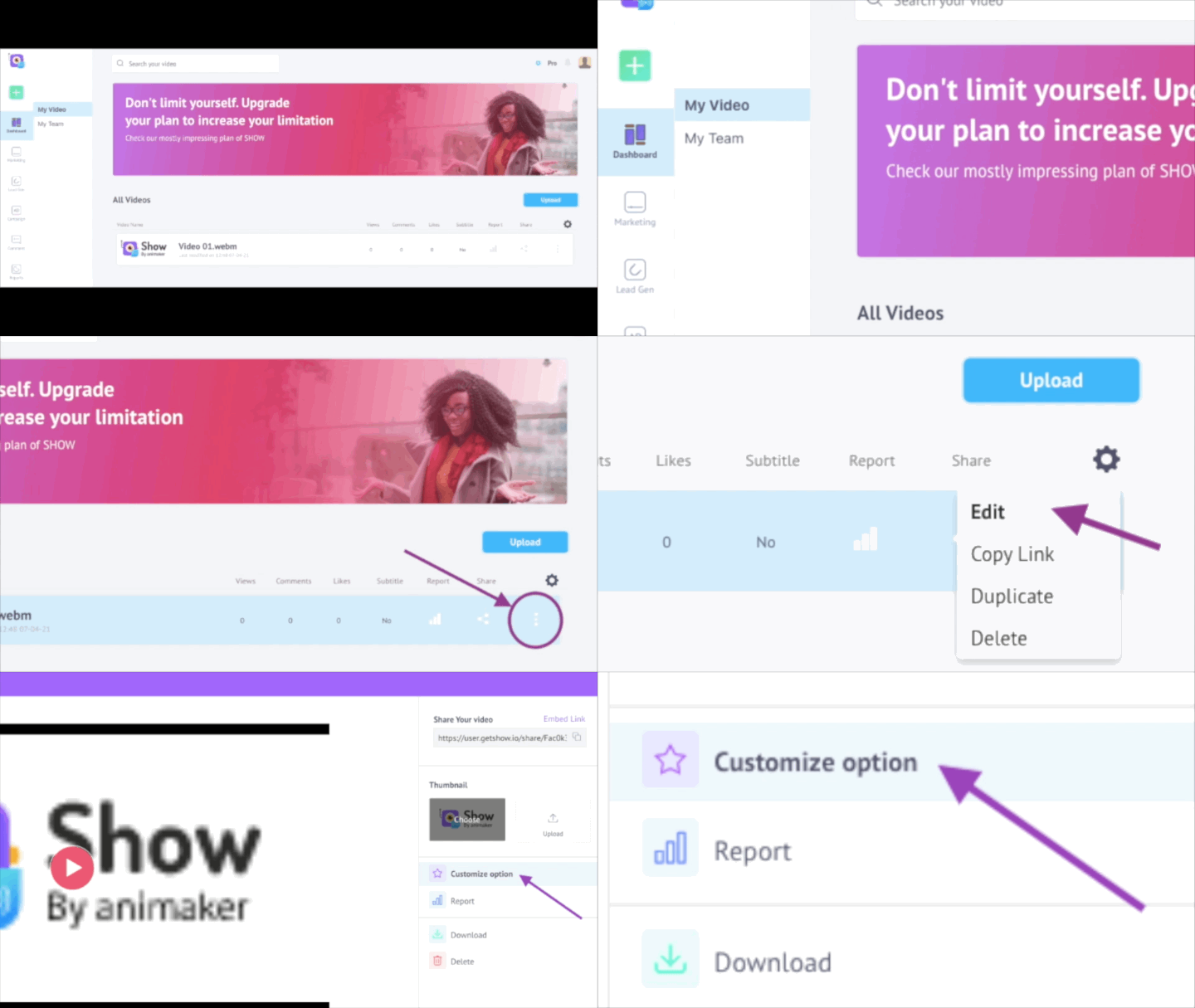
The first one is reaching the Customize Option panel, which is shown below,
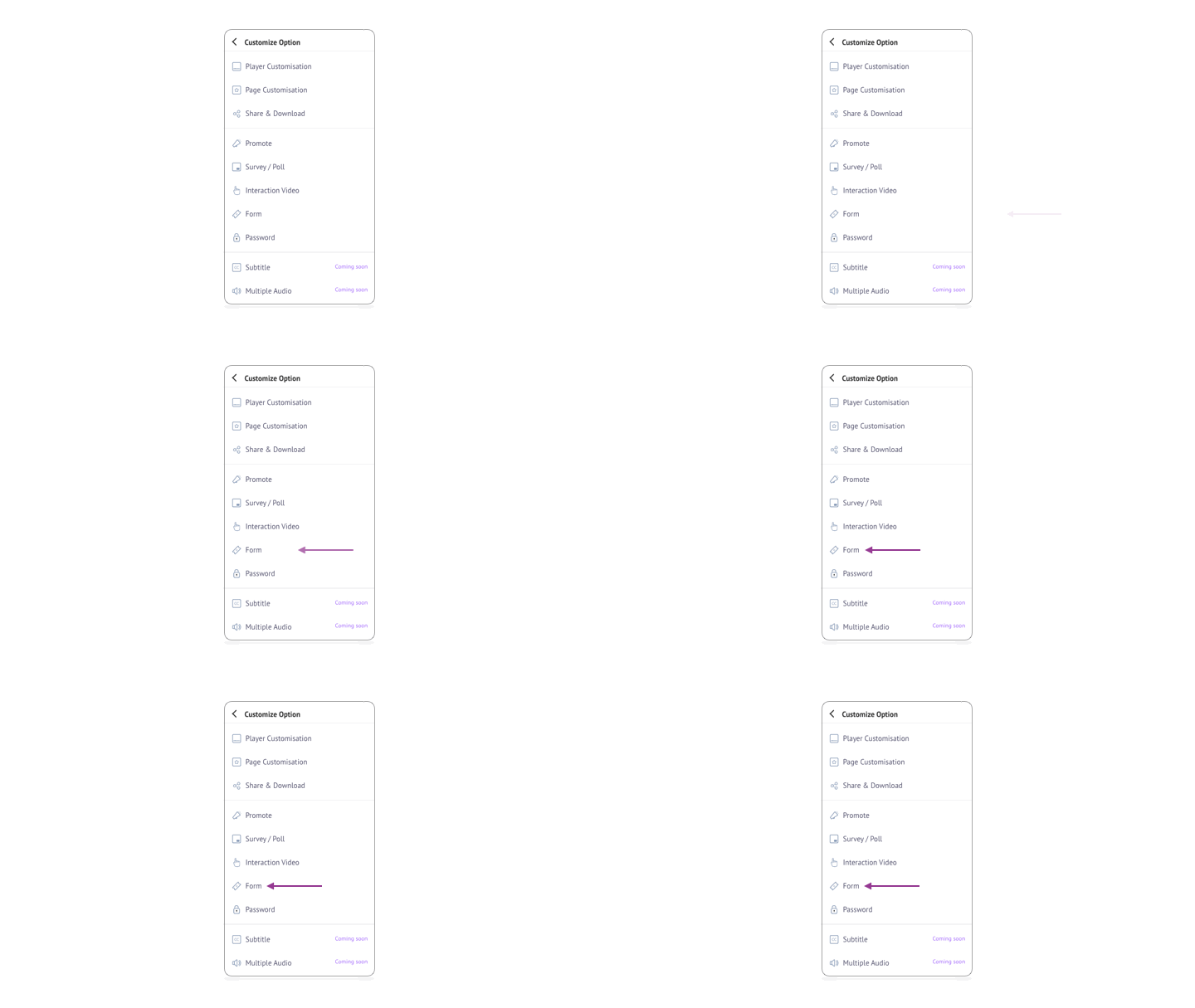
The next step is going to the Form Up feature in the Customize Option panel as shown below,
You are then taken to the Form Up features menu as shown below,
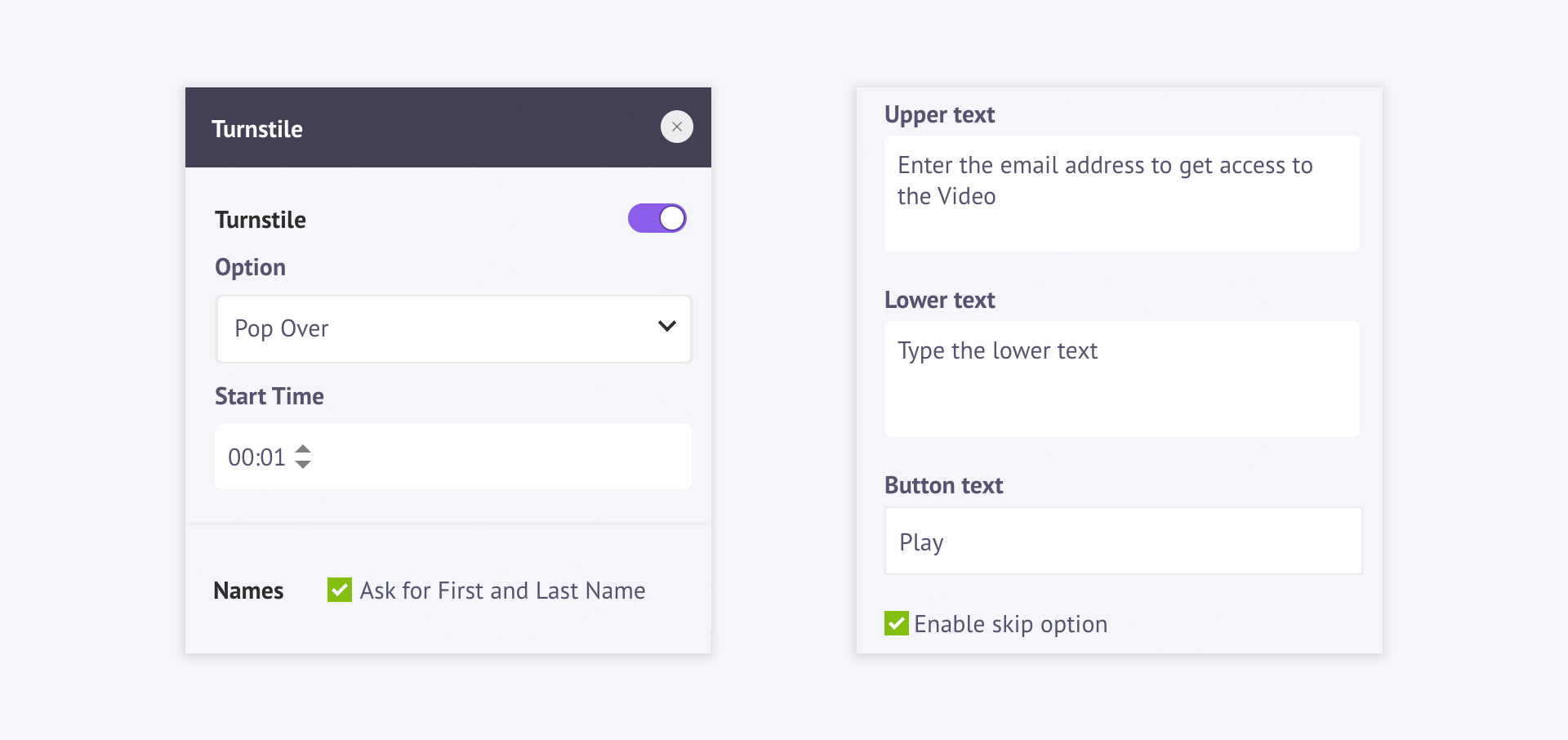
We have explained below how you can decide how your form would look and what information you can ask in the form.
HOW WILL IT LOOK?
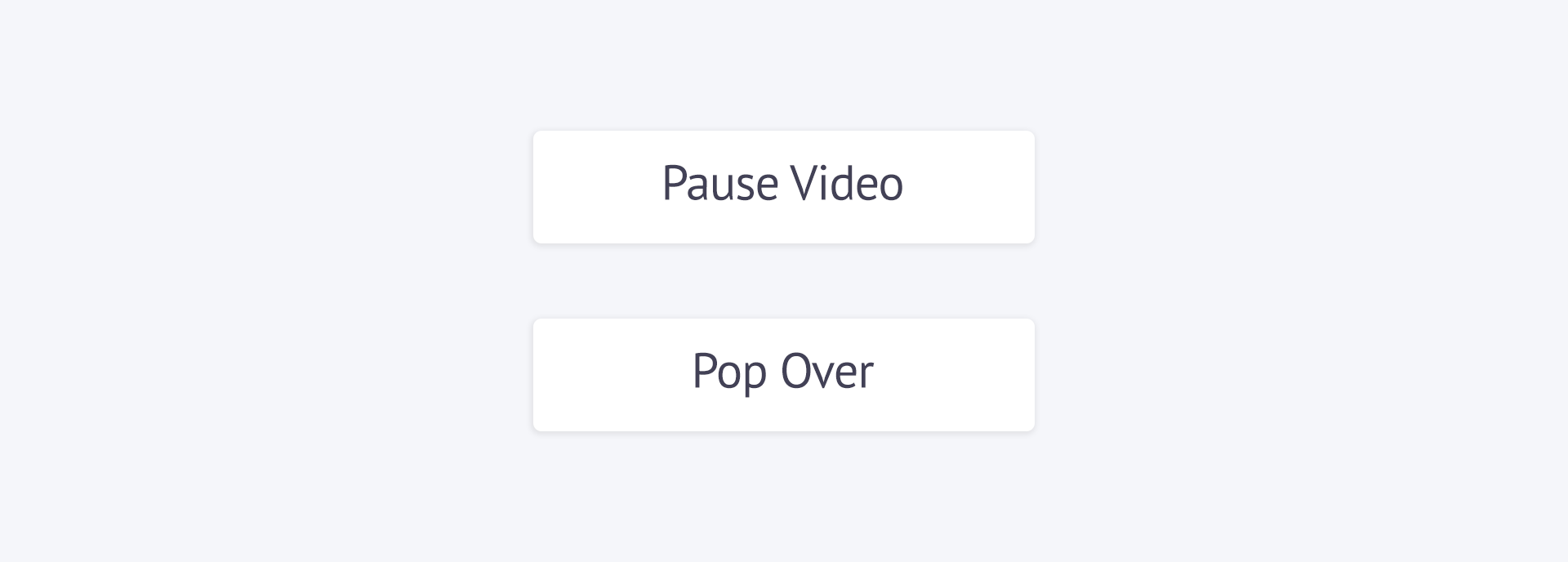
You can choose how your form can look in your video by selecting any of the two options given below,
Pause Video
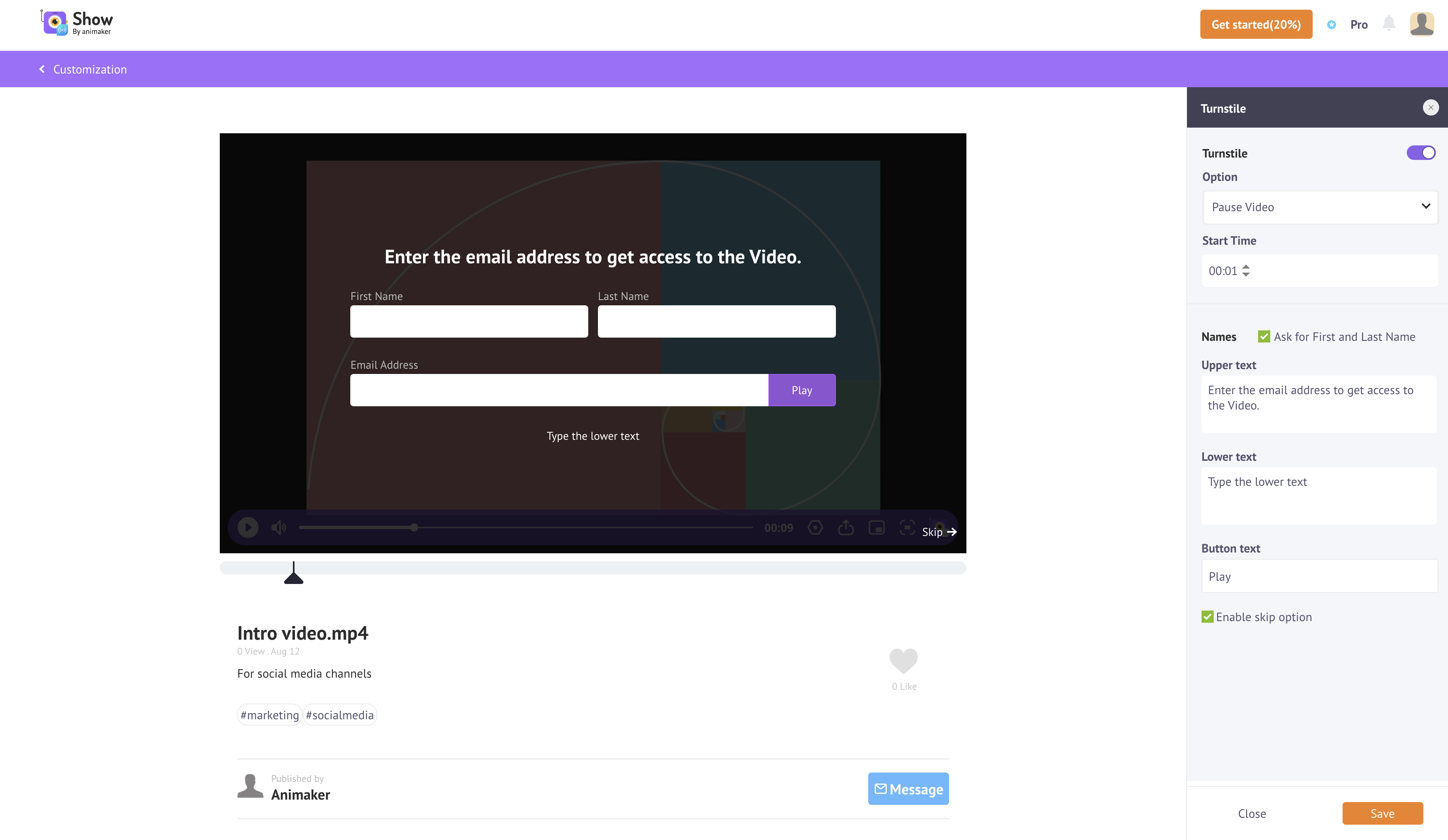
We have named this option Pause Video because as the name suggests, you can actually pause the video to pull up a form for the viewer to fill. The viewer is stopped at a strategic point in the video where you have piqued your audience's interest and then get them to fill the form like the saying 'Strike while the iron is hot'.
As you might know, the Pause Video Form setup is quite simple. All you need to do is select the Option 'Pause Video'. Once you select this option, you can see how the form appears as a whole screen over the paused video as shown below.
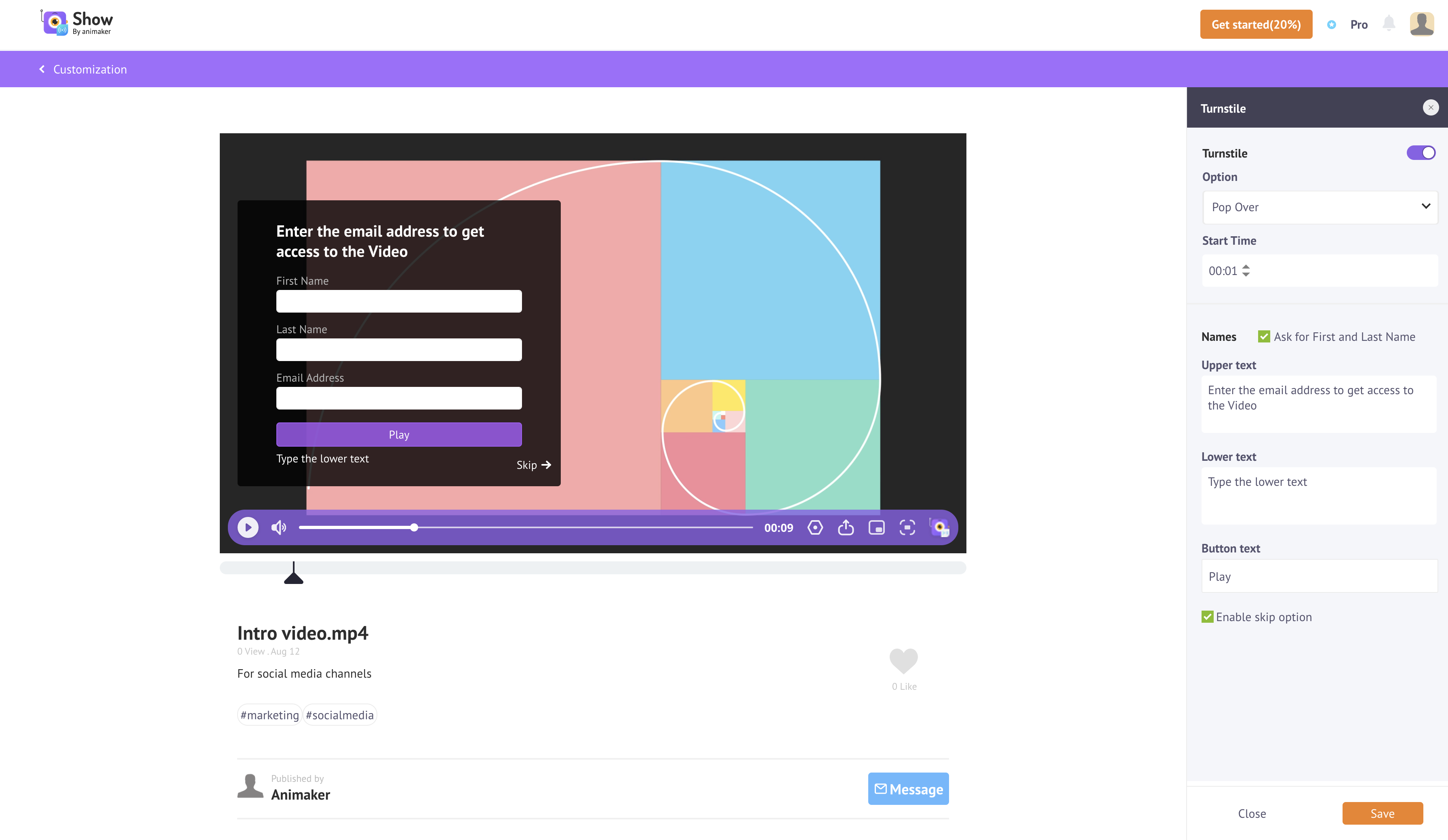
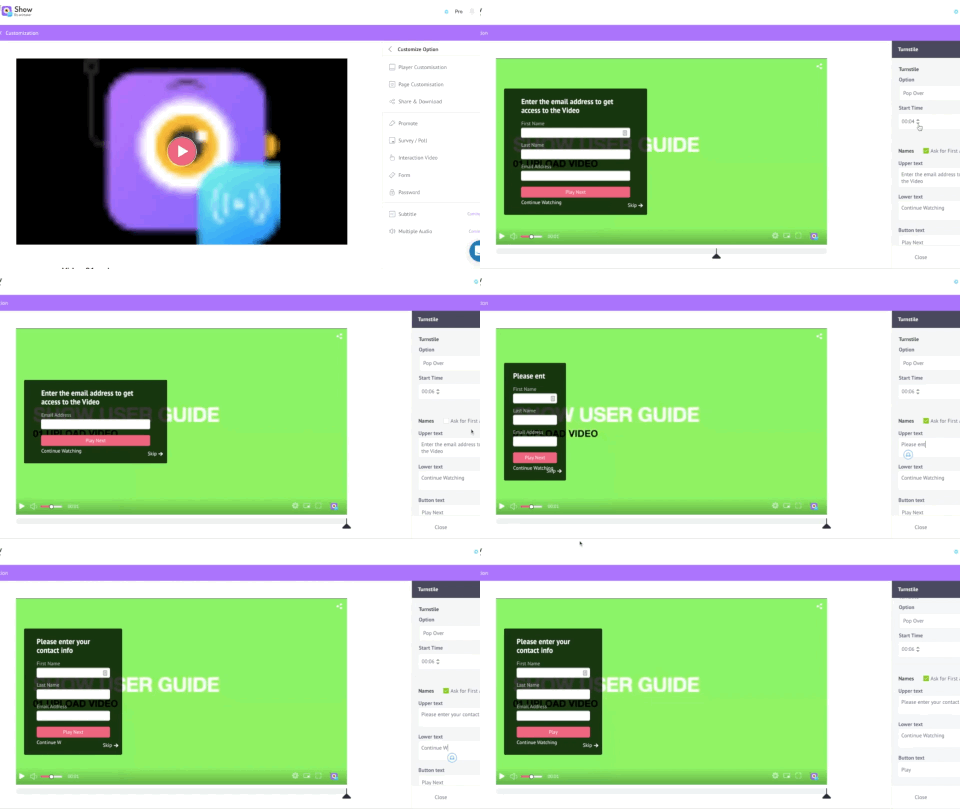
Pop Over\ This option, as the name suggests, makes your form appear like a pop-over on the right side of your paused video. You can see for yourself how the Pop Over option would look like in the video below,
THE FEATURES
Once you have decided which option you want your form to look like the process is one smooth move one step after the other. Since both the options have the same process, we have explained the features in the order that appears once you have selected the way you want your form to look.
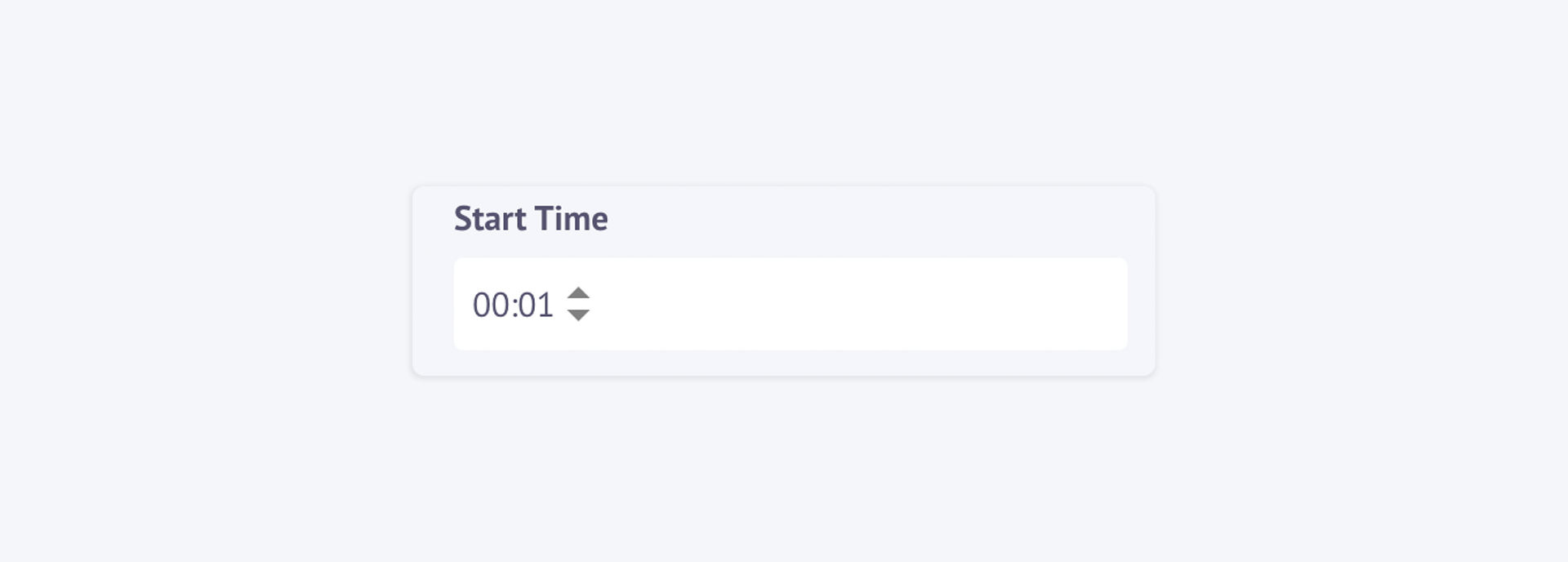
Set The Time for the Form\ This feature will help you select the time-position in your video where you want the form to appear by either typing in the time or scroll up/down the Start function.
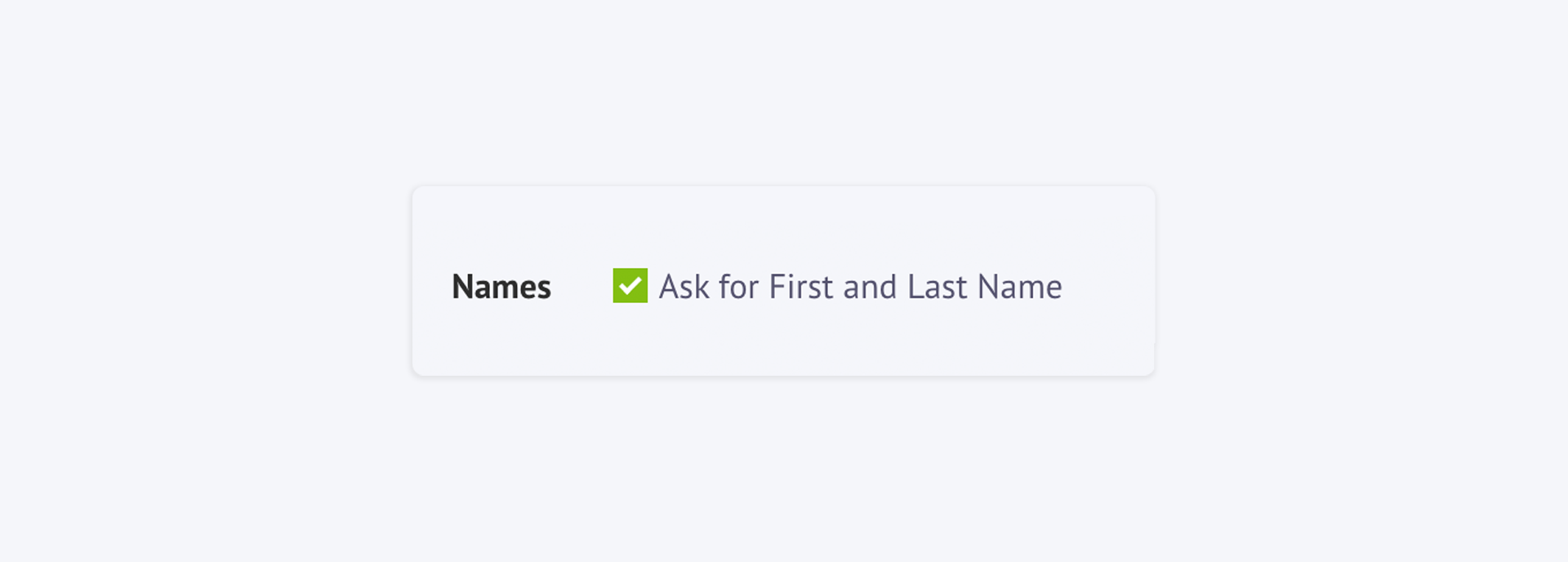
Collect Names\ We have provided a provision where you can collect the first and last names of your viewers. If you select this option, your form will ask for your viewer's first and last names by including boxes for them.
Insert Messages
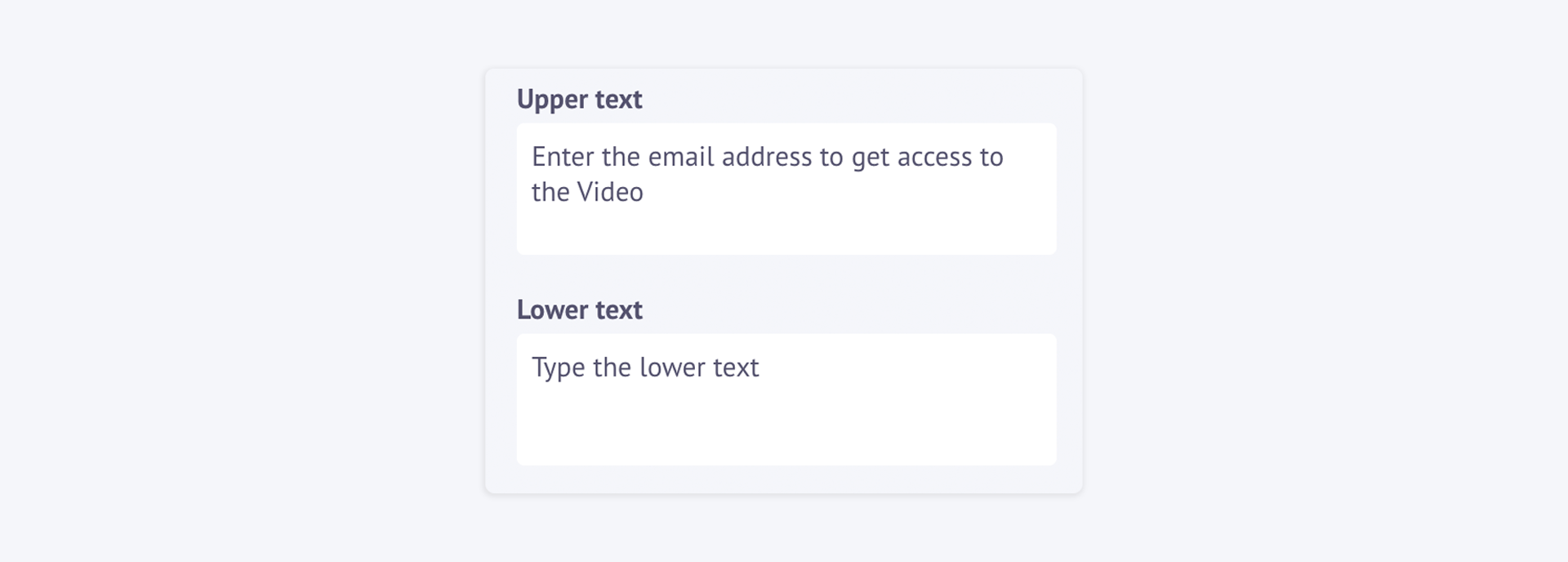
We do consider it good manners before asking for someone's information. This is why we have provided a provision for you to send messages to your viewers to coax them to give you their details. You can leave messages for your viewers on top of the form in the field rightly called the 'Upper Text', and at the bottom of the form in the field rightly called the 'Lower Text'.
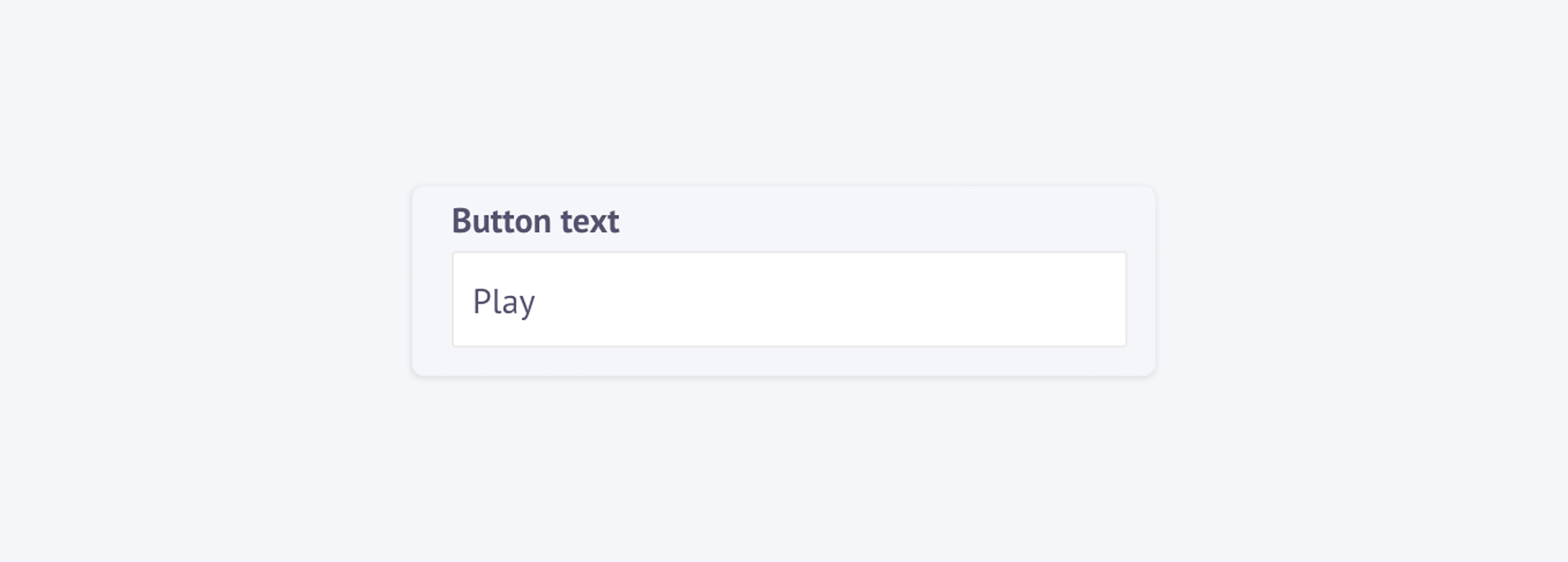
Customize Your Play Button\ We believe that connecting to your viewers on a personal level will help you in bringing your customer close. This is why we have given you an option to change the text on your Play button to anything you like. If you don't like to change the text, it is perfectly fine since the default text is Play.
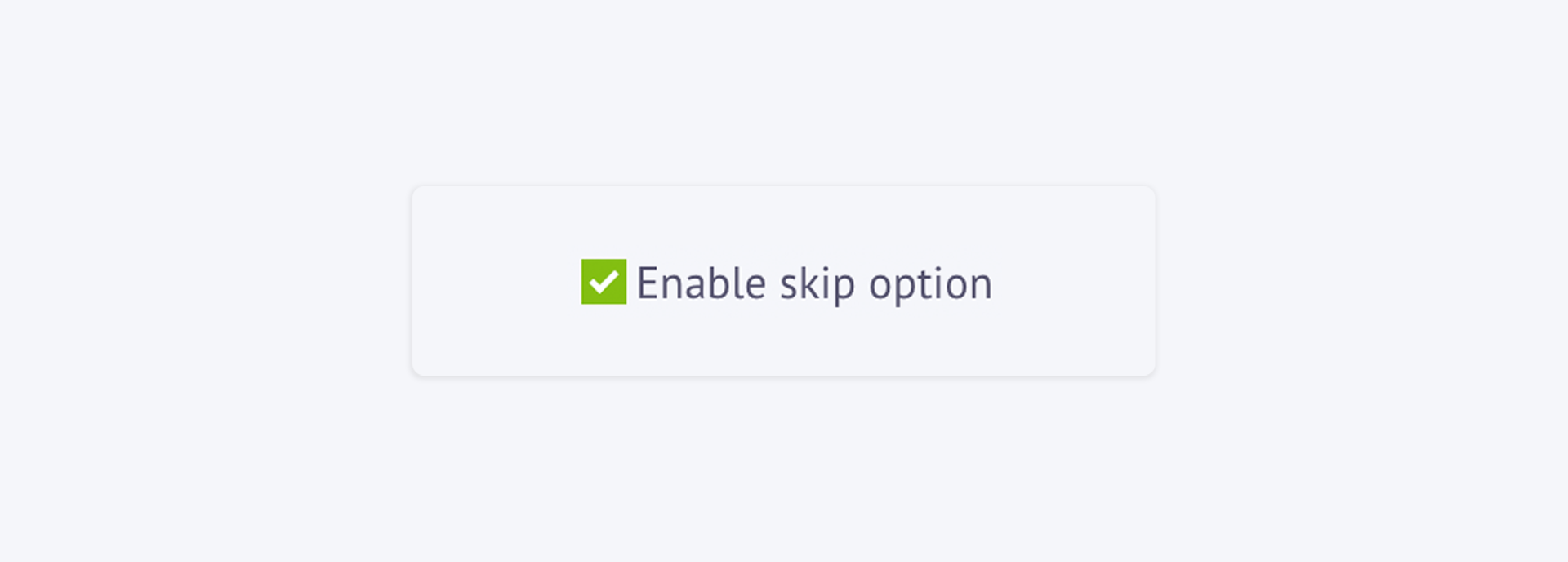
Toggle Your Skip Button\ You can actually provide your viewer with an option to skip the form and continue watching the rest of the video.
THE PROCESS
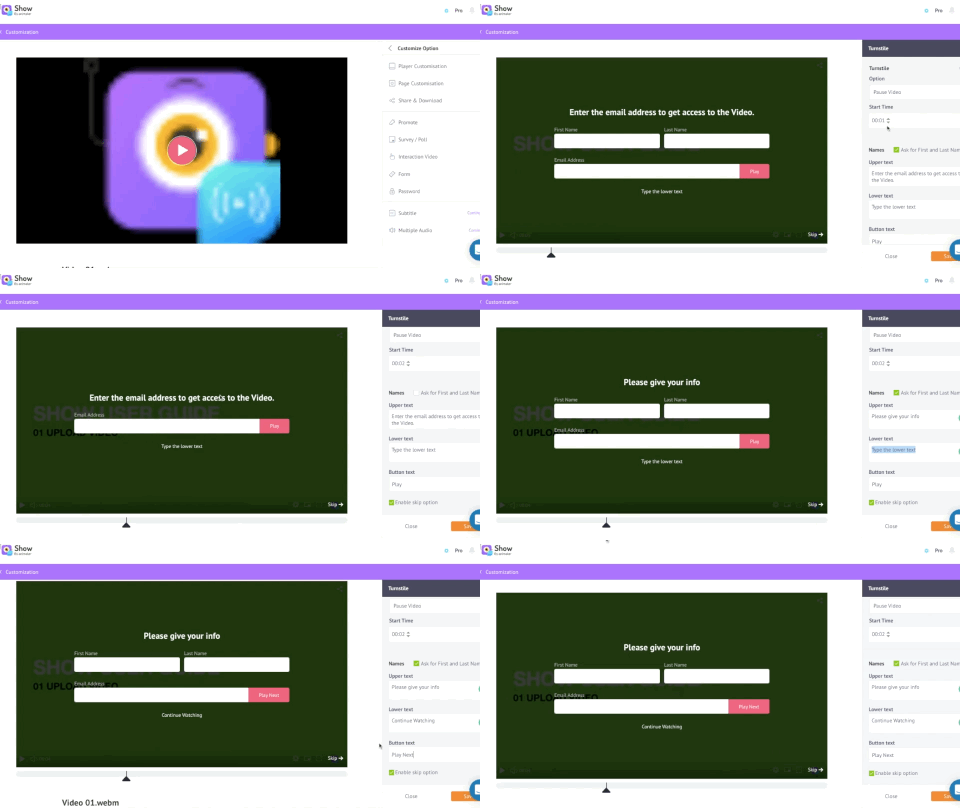
We have created videos for you to understand the whole process of setting up the form in your video. This might prove useful either of the options your go for, Pause Video or Pop Over.
Pause Video
* Pop Over
🚧 Please Note
DO NOT FORGET to save your customization after you finish.